Verifika Quality Control
Professional verification for bilingual files. Master the procedures for file preparation, profile importing, and comprehensive error reporting.
Supported Formats
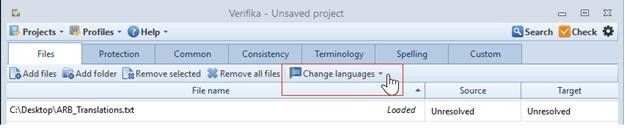
Verifika supports a vast range of industry standards, including SDLXLIFF (Trados), MQXLIFF (MemoQ), Memsource XLIFF, TMX, TBX, and bilingual MS Word/Excel files. It handles all languages, including Asian and RTL scripts.
Excel to Notepad Conversion
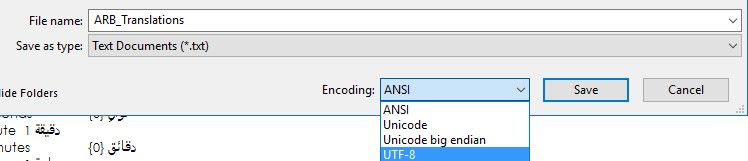
When working with bilingual Excel files, the most robust method is to select the Source and Target columns, paste them into a Notepad document, and save as UTF-8. This ensures clean parsing of special characters and formatting.
Multi-tab Handling
If the Excel file has multiple tabs, ensure all translations from all tabs are added to the same Notepad document before processing in Verifika.
Running Verifika Check
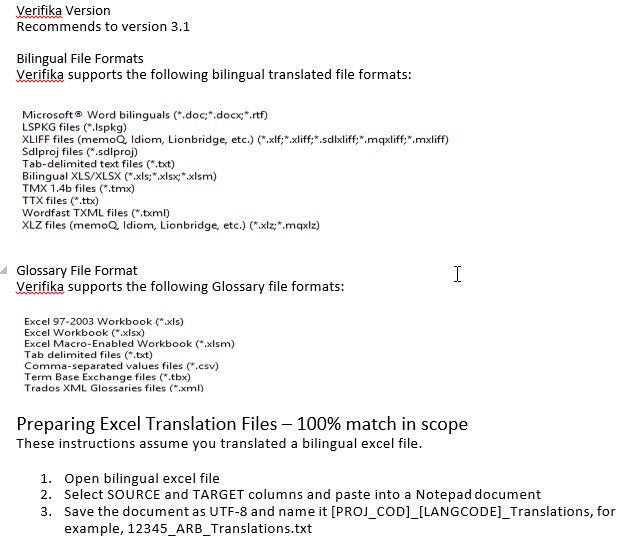
Open Verifika and click 'Add Files'. Highlight all files and ensure the source and target languages are correctly identified for each file.
Importing Profiles
Select Profiles > Import to load the appropriate account profile. You must do this every time you run the application to ensure correct settings.
Terminology Check
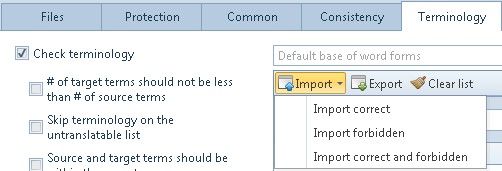
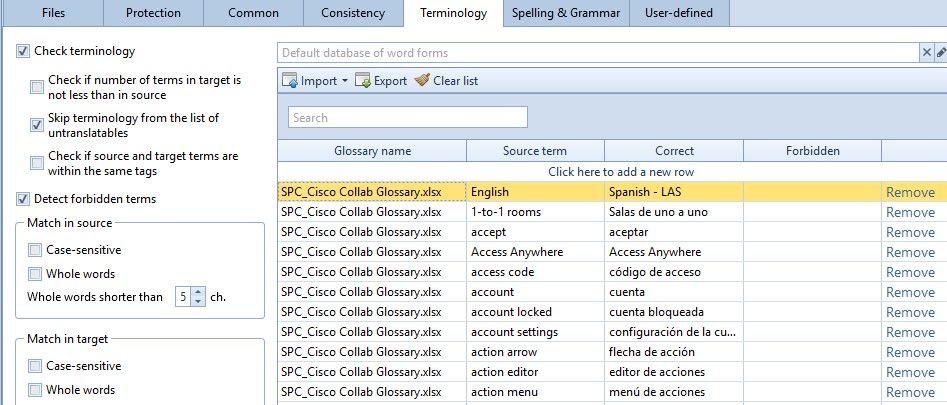
Verify that the glossary is loaded. If the terminology tab is empty, import the glossary file manually to check for forbidden terms.
Exporting Results
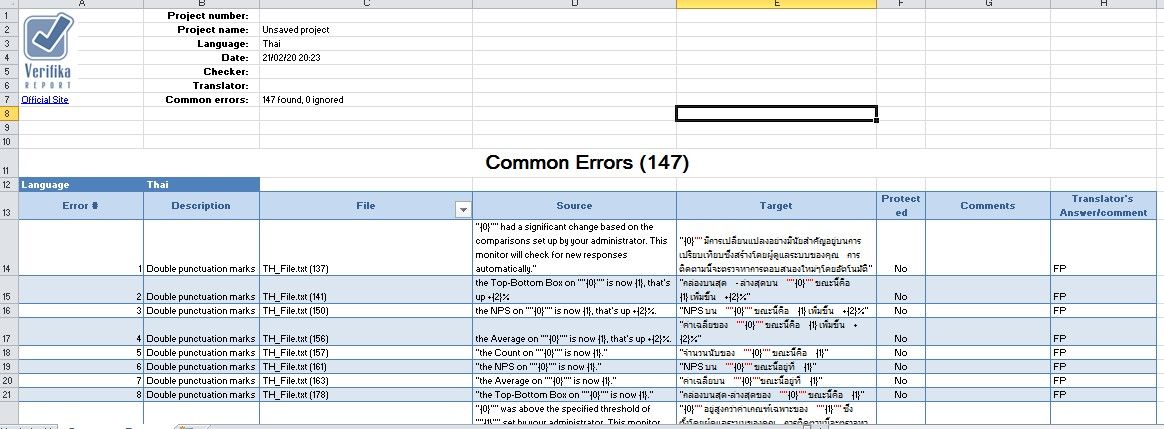
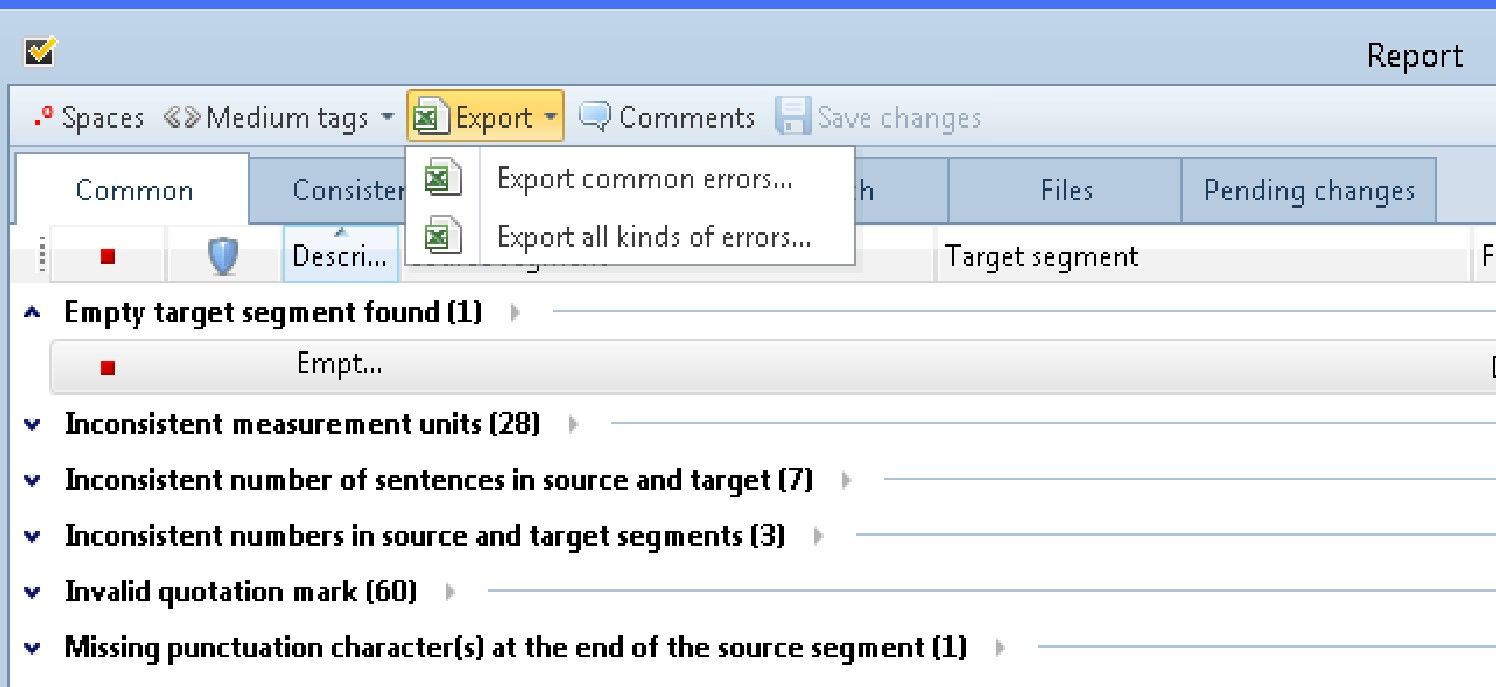
Click 'CHECK' and then 'Export all kinds of errors'. If no errors are found, submit a screenshot of the 'No errors' message as proof.
Processing the Report
Open the Excel report and mark each error as 'FIXED' or 'FALSE POSITIVE'. Submit this commented report with your final deliverables.