Transifex Localization Hub
Master the cloud-native translation workflow. Learn how to manage resources, perform real-time QA, and track productivity through advanced reporting.
Accessing the Editor
Files in Transifex are managed as 'Resources'. You can open the editor by clicking the 'Translate' button in the Project dashboard, selecting a specific Language, or using the centralized 'Editor' icon in the sidebar.
Web Editor Workflow
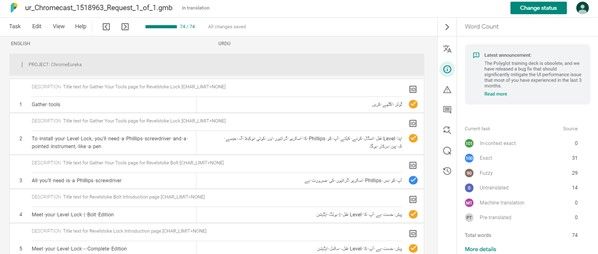
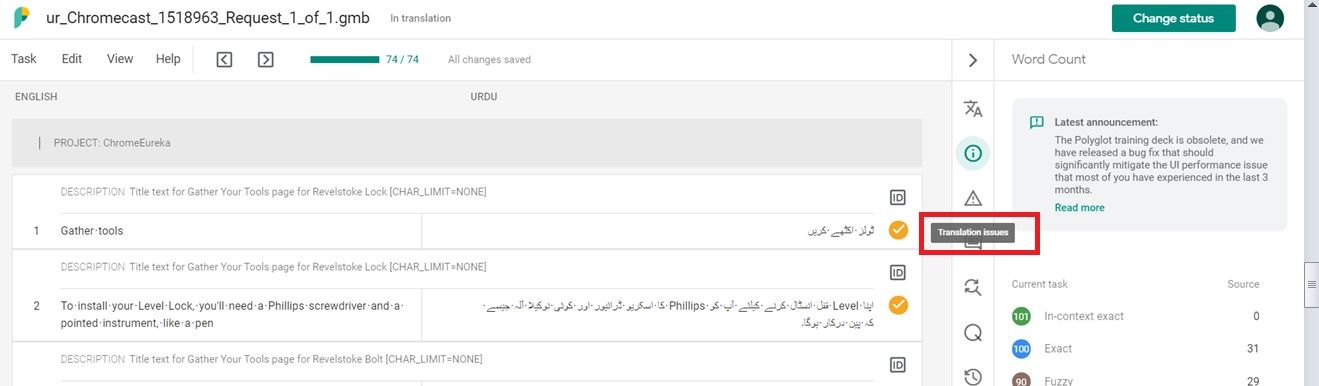
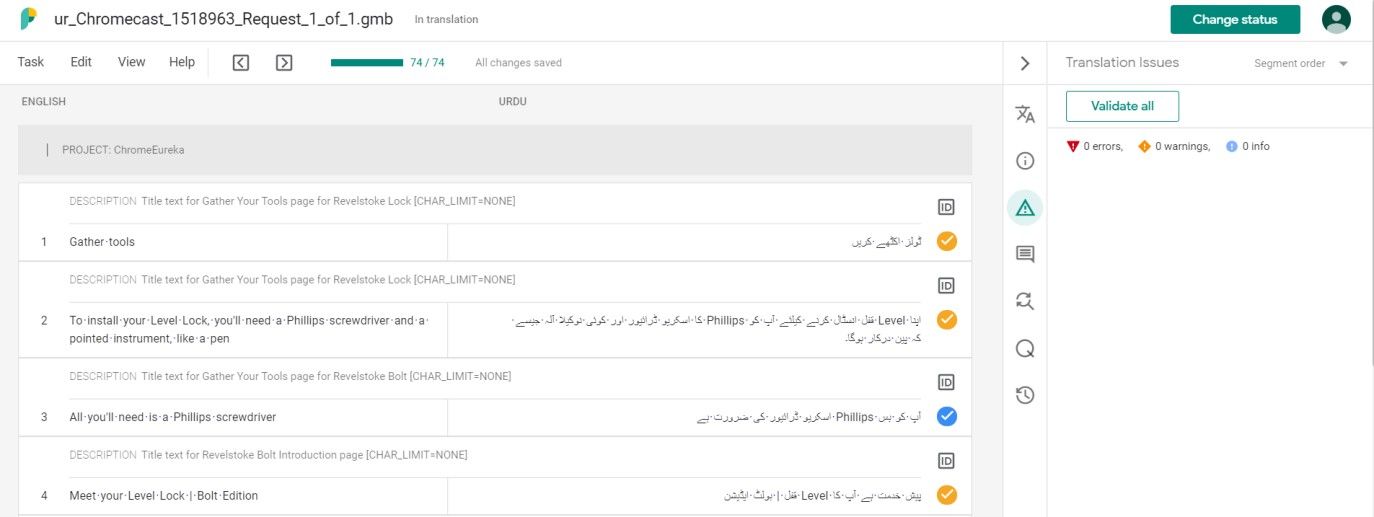
The editor features a 3-pane layout: String list on the left, Translation area in the center, and Context panel (TM, Glossary, History) on the right. Use filters to isolate 'Untranslated' or 'Unreviewed' strings.

Automated QA Checks
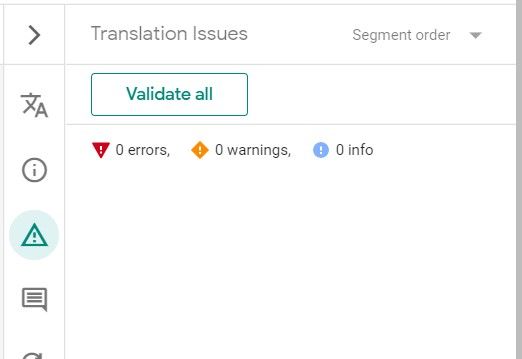
Transifex performs real-time checks as you type. It flags character limit violations, missing placeholders, and HTML tag mismatches. Strings with errors are marked with warning icons and cannot be finalized until fixed.
Review & Verification
After translation, strings move to the 'Review' stage. Reviewers verify accuracy and click the 'Review' button to lock the string. This multi-stage process ensures industrial-grade quality control.
Reporting & Productivity
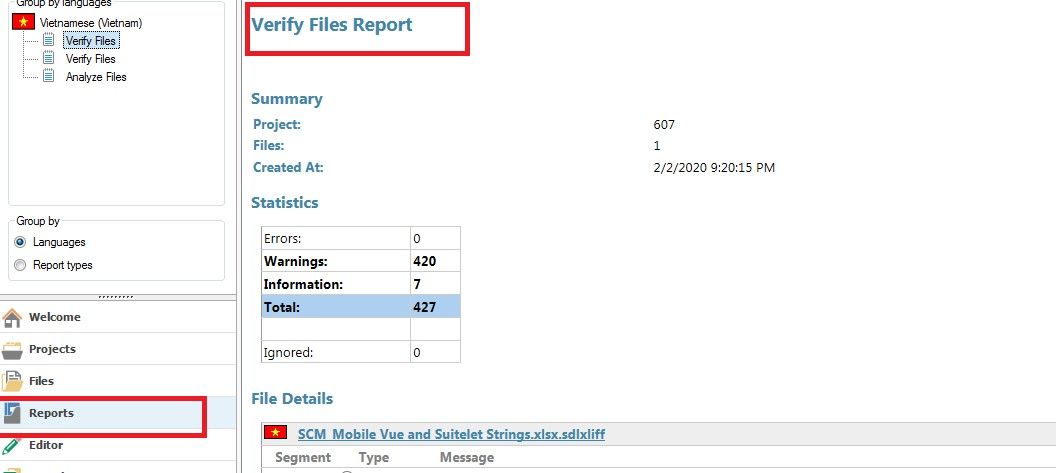
Navigate to the 'Reports' tab to track project health. The 'Translation Activity Report' shows detailed metrics per user, including words translated, reviewed, and TM leverage (fuzzy vs. exact matches).
Exporting Data
Productivity and progress reports can be exported in CSV format for billing and performance analysis. This provides a clear audit trail for the entire localization lifecycle.